ZEN AUDIO QUADILA — User Manual
- Version: 1.1.0
- Developer: ZEN AUDIO
- Supported Formats: VST3 / AU (macOS only)
- Supported OS: Windows 10 or later / macOS 11 or later
- Architecture: x86_64 / Apple Silicon (Universal Binary)
Table of Contents
1. INTRODUCTION
1-1. About ZEN AUDIO QUADILA
QUADILA is a multiband fuzz plugin developed by ZEN AUDIO and released in 2026. Designed for intuitive control, it lets you shape a wide range of distortion with ease, keeping you focused on sound design without losing your inspiration.
Main Features
- Multiband Control
Shape multiple independent bands freely, with intuitive and precise control. - Resonance Filter
A custom-designed resonance filter delivers a wide range of unique character with every tweak. - 10 Shapers
Choose from 10 uniquely designed shapers for each band to dial in your ideal distortion. - Intuitive & Flexible Control
Control each band and crossover intuitively, with confidence and precision. - Visual Guidance
A custom visual guide provides clear feedback on parameter changes. - Auto Gain
Apply independent auto gain to each band. - Post Filter / Clipper
Fine-tune your sound with an intuitive post filter and high-quality clipper. - Preset System
Includes presets created by Japanese artists active worldwide. - 70+ Color Themes
Choose from more than 70 GUI themes to customize the visual appearance.
2. INSTALLATION & ACTIVATION
2-1. Installation
Windows
Download the installer (
.exe) from
https://zen.audio/quadilaRun the installer and select the language.
Accept the EULA.
Choose installation components:
- VST3 Plugin →
C:\Program Files\Common Files\VST3\ - Factory Presets
- VST3 Plugin →
Installation path for VST3 can be customized.
- Launch your DAW and scan plugin to load QUADILA.
Microsoft Visual C++ Redistributable and Microsoft Edge WebView2 Runtime are required.
If not installed, they will be installed automatically.
macOS
- Download the installer (
.pkg) from
https://zen.audio/quadila - Run the installer and select the language.
- Accept the EULA.
- Choose installation components.
- Launch your DAW and scan plugin to load QUADILA.
If macOS shows “Cannot Be Opened Because the Developer Cannot Be Verified”, allow it from
System Settings → Privacy & Security.
2-2. License Status
QUADILA operates differently depending on login and license status.
| Status | Condition | Behavior |
|---|---|---|
| Activated | Logged in + Activated | Full functionality |
| Trial | Logged in + Trial started | Full functionality for 14 days (once per device) |
| Trial Expired | Logged in + Trial ended | 2 seconds mute every 15 seconds |
| Limited | Not logged in | 2 seconds mute every 15 seconds |
| Inactive | Logged in + Not activated | 2 seconds mute every 15 seconds |
| Needs Activation | Logged in but activation limit reached | 2 seconds mute every 15 seconds If you deactivate one of the devices and activate again, the status will switch to "Activated" mode. |
2-3. Activation
- Launch QUADILA in your DAW.
- Click the License icon (key icon) or open
Settings → Account & License. - Click Sign In to open ZEN AUDIO login page.
- Sign in to your account.
- If you own a license, activation occurs automatically and the plugin switches to Activated mode.
- If you do not own a license, Trial mode begins.
- If your trial has expired, the plugin enters Trial Expired mode.
Once activated, QUADILA can be used offline indefinitely unless deactivated.
Activation Limits
- One license can activate up to 2 devices simultaneously.
- To activate another device:
- Purchase another license, or
- Deactivate an existing device.
2-4. Deactivation
Deactivation frees an activation slot so another device can be activated.
- Open Settings → Account & License
- Click Deactivate
- Confirm by clicking Deactivate again
Once communication with the server is completed, the activation slot will be released.
Limitations
- Deactivation is limited to 5 times per year per license.
- The count resets on January 1 (JST).
If the limit is reached, contact support:
Sign Out vs Deactivate
| Action | Behavior |
|---|---|
| Sign Out | Clears local login data. Plugin enters Limited mode but activation slot remains occupied. |
| Deactivate | Releases the activation slot on the server so another device can activate the license. |
3. USING ZEN AUDIO QUADILA
3-1. Overview
The QUADILA interface consists of the following areas:
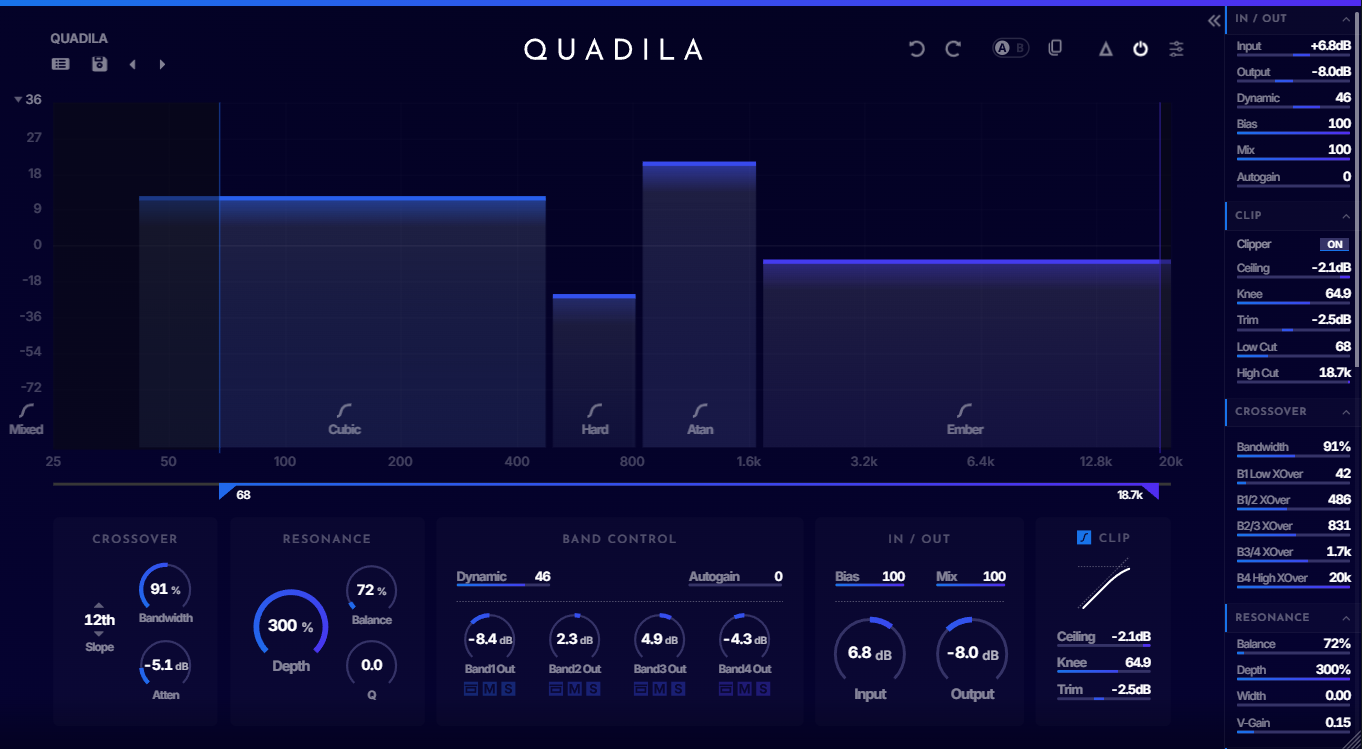
- Top Panel (Presets)
Load or save presets. - Top Panel (Utilities)
Access settings, tools, and status icons. - Main Area(Top)
The horizontal axis represents Hz and the vertical axis represents dB, displaying the parameters of each band. - Main Area(Bottom)
Parameter knobs and controls. - Side Panel
Vertically layout of parameters.
Toggle its visibility to click the button in the top-right corner. - Resizable Window
Drag the bottom-right corner to resize.
3-2. Knobs & Buttons
Knobs
Each knob supports the following operations:
- Drag— Adjust the value
- Double-click— Enter a value directly
- Shift+Drag— Adjust the value with finer precision
- Ctrl+click / Command+click— Reset the knob to its default value
3-3. Presets
The following controls are available in the upper-left.
- Preset Name — Displays the name of the current preset.
If the selected preset has been modified from its original values, a dirty indicator (*) appears at the beginning of the preset name to indicate that the preset has unsaved changes. - PRESET BROWSER — Opens the preset browser.
- SAVE PRESET — Saves the current parameters as a preset (
.zepfile). - ◀ / ▶ (PREVIOUS / NEXT) — Switches to the previous/next preset.
PRESET BROWSER
Displays a list of all presets (factory + user).
Presets are displayed in a list format and can be filtered or sorted by name, author, and favorites.
The available functions are as follows.
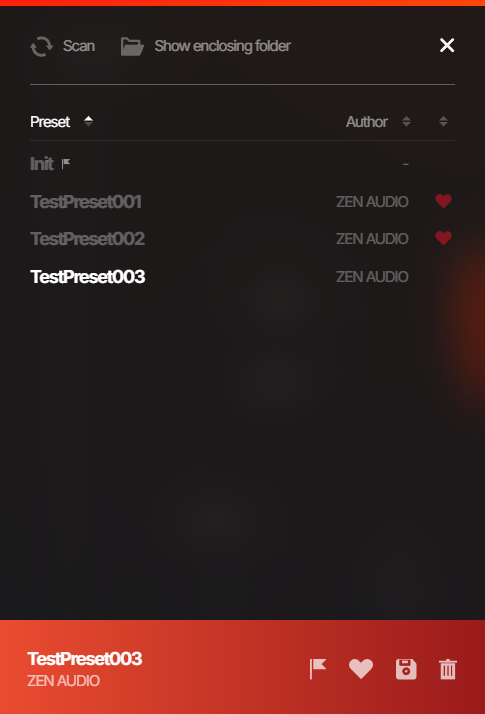
| Function | Description |
|---|---|
| Scan | Reloads the presets in the folder where presets are stored |
| Show enclosing folder | Opens the folder where presets are stored in the OS file explorer |
| Add/Remove Favorite | Adds or removes the selected preset from favorites Displayed with a heart icon |
| Set/Unset Default | Sets or unsets the selected preset as the default preset when QUADILA is launched Displayed with a flag icon |
| Save Preset | Saves the current parameter state as a preset |
| Delete Preset | Deletes the selected preset |
SAVE PRESET
Saves the current parameter state as a preset.
You can save a preset by clicking SAVE PRESET in the top panel, or by selecting any preset in the preset browser and clicking Save Preset.
- Preset name: — Enter the name of the preset to save. If the same name as an existing preset is used, it will overwrite that preset.
- Author: — Enter the name of the preset author.
3-4. Utilities
The following controls are available in the upper-right.
| Control | Description |
|---|---|
| License Icon | Displayed when the plugin is not activated, and clicking it will show a sign-in prompt Displayed with a key icon |
| UNDO | Reverts the last action |
| REDO | Reapplies the last undone action |
| A/B | Toggles banks A and B, each able to store the current state. |
| A/B COPY | Copies the selected bank to the other one |
| DELTA | Outputs only the part of the signal affected by QUADILA when enabled. |
| MASTER ON/OFF | Turns the plugin processing on/off |
| SETTINGS | Opens the settings screen |
| Side Panel Button | Toggles the visibility of the side panel |
4. SUPPORT
If you have any questions or inquiries, please contact us using the following links.
- Support: https://zen.audio/support
- Product Page: https://zen.audio/quadila
- Account Portal: https://zen.audio/my-account
© ZEN AUDIO. All rights reserved.